mirror of
https://github.com/vrtmrz/obsidian-livesync.git
synced 2026-10-29 20:43:20 +00:00

280 lines
14 KiB
Markdown
280 lines
14 KiB
Markdown
<!-- For translation: 20240209r0 -->
|
|
# Setup CouchDB on fly.io
|
|
|
|
This is how to configure fly.io and CouchDB on it for Self-hosted LiveSync.
|
|
|
|
The CouchDB instance is yours to manage. You can configure it yourself or set up another instance and switch to it, following the preservation and recovery guidance below.
|
|
|
|
> [!WARNING]
|
|
> Before replacing or deleting an existing CouchDB instance, back up every available Vault and the remote database, then [choose the authoritative copy](recovery.md#first-choose-the-authoritative-copy). Stop or suspend synchronisation on other devices while reviewing recovery options. Local files alone do not establish that every needed edit or revision has been preserved.
|
|
|
|
> [!NOTE]
|
|
> **What and why is the Fly.io?**
|
|
> At some point, we started to experience problems related to our IBM Cloudant account. At the same time, Self-hosted LiveSync started to improve its functionality, requiring CouchDB in a more natural state to use all its features.
|
|
>
|
|
> Fly.io charges according to current account and resource usage, including Machines, persistent volumes, and network usage. Check [Fly.io pricing](https://fly.io/pricing/) and the [pricing documentation](https://fly.io/docs/about/pricing/) before deploying. A time-limited trial does not provide ongoing free hosting.
|
|
|
|
## Required materials
|
|
|
|
- A valid credit or debit card.
|
|
|
|
## Setup CouchDB instance
|
|
|
|
### A. Very automated setup
|
|
|
|
[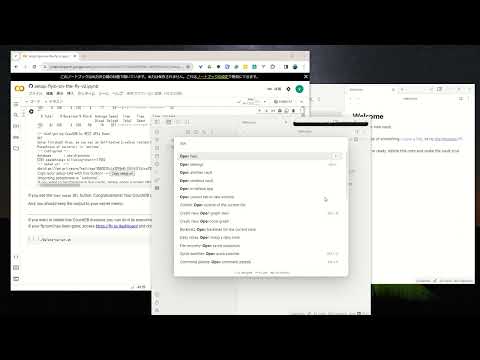](https://www.youtube.com/watch?v=7sa_I1832Xc)
|
|
|
|
1. Open [setup-flyio-on-the-fly-v2.ipynb](../setup-flyio-on-the-fly-v2.ipynb).
|
|
2. Press the `Open in Colab` button.
|
|
3. Choose a region and run all blocks (Refer to video).
|
|
1. If you do not have the account yet, the sign-up page will be shown, please follow the instructions. The [Official document is here](https://fly.io/docs/hands-on/sign-up/).
|
|
4. Copy the Setup-URI and Use it in the Obsidian.
|
|
5. You have been synchronised. Use the Setup-URI in subsequent devices.
|
|
|
|
For steps 4 and 5, see [Set up the first device](./quick_setup.md#set-up-the-first-device), then [Add another device](./quick_setup.md#add-another-device) for subsequent devices.
|
|
|
|
> [!NOTE]
|
|
> Save your own generated connection details and Setup URI securely. This is a historical Colab output example from 2024; its values are illustrative and will differ for each deployment. Replace all example credentials before deployment.
|
|
> ```
|
|
> -- YOUR CONFIGURATION --
|
|
> URL : https://billowing-dawn-6619.fly.dev
|
|
> username: billowing-cherry-22580
|
|
> password: misty-dew-13571
|
|
> region : nrt
|
|
> ```
|
|
|
|
### B. Scripted Setup
|
|
|
|
Please refer to the document of [deploy-server.sh](../utils/readme.md#flyio-deployment).
|
|
|
|
### C. Manual Setup
|
|
|
|
| Used in the text | Meaning and where to use | Memo |
|
|
| ---------------- | --------------------------- | ------------------------------------------------------------------------ |
|
|
| `<YOUR UNIQUE COUCHDB USERNAME>` | Username | Choose a unique value using only letters and numbers. |
|
|
| `<YOUR UNIQUE COUCHDB PASSWORD>` | Password | Generate a strong, unique password for this instance. |
|
|
| nrt | Region to make the instance | We can use any [region](https://fly.io/docs/reference/regions/) near us. |
|
|
|
|
Choose an available, unique Fly.io application name and replace both credential placeholders before deployment. Historical output below illustrates the command responses; use your own application name, hostname, and credentials.
|
|
|
|
#### 1. Install flyctl
|
|
|
|
- Mac or Linux
|
|
|
|
```sh
|
|
$ curl -L https://fly.io/install.sh | sh
|
|
```
|
|
|
|
- Windows
|
|
|
|
```powershell
|
|
$ iwr https://fly.io/install.ps1 -useb | iex
|
|
```
|
|
|
|
#### 2. Sign up or Sign in to fly.io
|
|
|
|
- Sign up
|
|
|
|
```bash
|
|
$ fly auth signup
|
|
```
|
|
|
|
- Sign in
|
|
|
|
```bash
|
|
$ fly auth login
|
|
```
|
|
|
|
For more information, please refer to [Sign up](https://fly.io/docs/hands-on/sign-up/) and [Sign in](https://fly.io/docs/hands-on/sign-in/).
|
|
|
|
#### 3. Make a configuration file
|
|
|
|
1. Make `fly.toml` from template `fly.template.toml`.
|
|
We can simply copy and rename the file. The template is on [utils/flyio/fly.template.toml](../utils/flyio/fly.template.toml)
|
|
2. Decide the instance name, initialize the App, and set credentials.
|
|
|
|
>[!TIP]
|
|
> - The name `billowing-dawn-6619` is randomly decided name, and it will be a part of the CouchDB URL. It should be globally unique. Therefore, it is recommended to use something random for this name.
|
|
> - Explicit naming is very good for humans. However, we do not often get the chance to actually enter this manually (have designed so). This database may contain important information for you. The needle should be hidden in the haystack.
|
|
|
|
|
|
```bash
|
|
$ fly launch --name='<YOUR UNIQUE APP NAME>' --env="COUCHDB_USER=<YOUR UNIQUE COUCHDB USERNAME>" --copy-config=true --detach --no-deploy --region nrt --yes
|
|
$ fly secrets set COUCHDB_PASSWORD='<YOUR UNIQUE COUCHDB PASSWORD>'
|
|
```
|
|
|
|
#### 4. Deploy
|
|
|
|
```
|
|
$ flyctl deploy
|
|
An existing fly.toml file was found
|
|
Using build strategies '[the "couchdb:latest" docker image]'. Remove [build] from fly.toml to force a rescan
|
|
Creating app in /home/vorotamoroz/dev/obsidian-livesync/utils/flyio
|
|
We're about to launch your app on Fly.io. Here's what you're getting:
|
|
|
|
Organization: vorotamoroz (fly launch defaults to the personal org)
|
|
Name: billowing-dawn-6619 (specified on the command line)
|
|
Region: Tokyo, Japan (specified on the command line)
|
|
App Machines: shared-cpu-1x, 256MB RAM (specified on the command line)
|
|
Postgres: <none> (not requested)
|
|
Redis: <none> (not requested)
|
|
|
|
Created app 'billowing-dawn-6619' in organization 'personal'
|
|
Admin URL: https://fly.io/apps/billowing-dawn-6619
|
|
Hostname: billowing-dawn-6619.fly.dev
|
|
Wrote config file fly.toml
|
|
Validating /home/vorotamoroz/dev/obsidian-livesync/utils/flyio/fly.toml
|
|
Platform: machines
|
|
✓ Configuration is valid
|
|
Your app is ready! Deploy with `flyctl deploy`
|
|
Secrets are staged for the first deployment
|
|
==> Verifying app config
|
|
Validating /home/vorotamoroz/dev/obsidian-livesync/utils/flyio/fly.toml
|
|
Platform: machines
|
|
✓ Configuration is valid
|
|
--> Verified app config
|
|
==> Building image
|
|
Searching for image 'couchdb:latest' remotely...
|
|
image found: img_ox20prk63084j1zq
|
|
|
|
Watch your deployment at https://fly.io/apps/billowing-dawn-6619/monitoring
|
|
|
|
Provisioning ips for billowing-dawn-6619
|
|
Dedicated ipv6: 2a09:8280:1::37:fde9
|
|
Shared ipv4: 66.241.124.163
|
|
Add a dedicated ipv4 with: fly ips allocate-v4
|
|
|
|
Creating a 1 GB volume named 'couchdata' for process group 'app'. Use 'fly vol extend' to increase its size
|
|
This deployment will:
|
|
* create 1 "app" machine
|
|
|
|
No machines in group app, launching a new machine
|
|
|
|
WARNING The app is not listening on the expected address and will not be reachable by fly-proxy.
|
|
You can fix this by configuring your app to listen on the following addresses:
|
|
- 0.0.0.0:5984
|
|
Found these processes inside the machine with open listening sockets:
|
|
PROCESS | ADDRESSES
|
|
-----------------*---------------------------------------
|
|
/.fly/hallpass | [fdaa:0:73b9:a7b:22e:3851:7f28:2]:22
|
|
|
|
Finished launching new machines
|
|
|
|
NOTE: The machines for [app] have services with 'auto_stop_machines = true' that will be stopped when idling
|
|
|
|
-------
|
|
Checking DNS configuration for billowing-dawn-6619.fly.dev
|
|
|
|
Visit your newly deployed app at https://billowing-dawn-6619.fly.dev/
|
|
```
|
|
|
|
#### 5. Apply CouchDB configuration
|
|
|
|
After the initial setup, CouchDB needs some more customisations to be used from Self-hosted LiveSync. It can be configured in browsers or by HTTP-REST APIs.
|
|
|
|
This section uses the REST API. The macOS and Linux commands require [jq](https://jqlang.org/download/) to encode credentials as JSON. Windows uses PowerShell's built-in `ConvertTo-Json`.
|
|
|
|
1. Prepare environment variables.
|
|
|
|
- Mac or Linux:
|
|
|
|
```bash
|
|
export couchHost='https://<YOUR APP HOSTNAME>'
|
|
export couchUser='<YOUR UNIQUE COUCHDB USERNAME>'
|
|
export couchPwd='<YOUR UNIQUE COUCHDB PASSWORD>'
|
|
```
|
|
|
|
- Windows
|
|
|
|
```powershell
|
|
set couchHost 'https://<YOUR APP HOSTNAME>'
|
|
set couchUser '<YOUR UNIQUE COUCHDB USERNAME>'
|
|
set couchPwd '<YOUR UNIQUE COUCHDB PASSWORD>'
|
|
$creds = [System.Convert]::ToBase64String([System.Text.Encoding]::UTF8.GetBytes("${couchUser}:${couchPwd}"))
|
|
```
|
|
|
|
2. Perform cluster setup
|
|
|
|
- Mac or Linux
|
|
|
|
```bash
|
|
clusterSetupJSON=$(jq -n \
|
|
--arg username "$couchUser" \
|
|
--arg password "$couchPwd" \
|
|
'{
|
|
action: "enable_single_node",
|
|
username: $username,
|
|
password: $password,
|
|
bind_address: "0.0.0.0",
|
|
port: 5984,
|
|
singlenode: true
|
|
}') &&
|
|
curl -X POST "${couchHost}/_cluster_setup" \
|
|
-H "Content-Type: application/json" \
|
|
--data-binary "$clusterSetupJSON" \
|
|
--user "${couchUser}:${couchPwd}"
|
|
```
|
|
|
|
- Windows
|
|
|
|
```powershell
|
|
$clusterSetupJSON = @{
|
|
action = 'enable_single_node'
|
|
username = $couchUser
|
|
password = $couchPwd
|
|
bind_address = '0.0.0.0'
|
|
port = 5984
|
|
singlenode = $true
|
|
} | ConvertTo-Json -Compress
|
|
|
|
iwr -UseBasicParsing -Method 'POST' -ContentType 'application/json; charset=utf-8' -Headers @{ 'Authorization' = 'Basic ' + $creds } "${couchHost}/_cluster_setup" -Body $clusterSetupJSON
|
|
```
|
|
|
|
Note: if the response code is not 200. We have to retry the request once again.
|
|
If you run the request several times and it does not result in 200, something is wrong. Please report it.
|
|
|
|
3. Configure parameters
|
|
|
|
- Mac or Linux
|
|
|
|
```bash
|
|
curl -X PUT "${couchHost}/_node/nonode@nohost/_config/chttpd/require_valid_user" -H "Content-Type: application/json" -d '"true"' --user "${couchUser}:${couchPwd}"
|
|
curl -X PUT "${couchHost}/_node/nonode@nohost/_config/chttpd_auth/require_valid_user" -H "Content-Type: application/json" -d '"true"' --user "${couchUser}:${couchPwd}"
|
|
curl -X PUT "${couchHost}/_node/nonode@nohost/_config/httpd/WWW-Authenticate" -H "Content-Type: application/json" -d '"Basic realm=\"couchdb\""' --user "${couchUser}:${couchPwd}"
|
|
curl -X PUT "${couchHost}/_node/nonode@nohost/_config/httpd/enable_cors" -H "Content-Type: application/json" -d '"true"' --user "${couchUser}:${couchPwd}"
|
|
curl -X PUT "${couchHost}/_node/nonode@nohost/_config/chttpd/enable_cors" -H "Content-Type: application/json" -d '"true"' --user "${couchUser}:${couchPwd}"
|
|
curl -X PUT "${couchHost}/_node/nonode@nohost/_config/chttpd/max_http_request_size" -H "Content-Type: application/json" -d '"4294967296"' --user "${couchUser}:${couchPwd}"
|
|
curl -X PUT "${couchHost}/_node/nonode@nohost/_config/couchdb/max_document_size" -H "Content-Type: application/json" -d '"50000000"' --user "${couchUser}:${couchPwd}"
|
|
curl -X PUT "${couchHost}/_node/nonode@nohost/_config/cors/credentials" -H "Content-Type: application/json" -d '"true"' --user "${couchUser}:${couchPwd}"
|
|
curl -X PUT "${couchHost}/_node/nonode@nohost/_config/cors/origins" -H "Content-Type: application/json" -d '"app://obsidian.md,capacitor://localhost,http://localhost"' --user "${couchUser}:${couchPwd}"
|
|
```
|
|
|
|
- Windows
|
|
|
|
```powershell
|
|
iwr -UseBasicParsing -Method 'PUT' -ContentType 'application/json; charset=utf-8' -Headers @{ 'Authorization' = 'Basic ' + $creds } "${couchHost}/_node/nonode@nohost/_config/chttpd/require_valid_user" -Body '"true"'
|
|
iwr -UseBasicParsing -Method 'PUT' -ContentType 'application/json; charset=utf-8' -Headers @{ 'Authorization' = 'Basic ' + $creds } "${couchHost}/_node/nonode@nohost/_config/chttpd_auth/require_valid_user" -Body '"true"'
|
|
iwr -UseBasicParsing -Method 'PUT' -ContentType 'application/json; charset=utf-8' -Headers @{ 'Authorization' = 'Basic ' + $creds } "${couchHost}/_node/nonode@nohost/_config/httpd/WWW-Authenticate" -Body '"Basic realm=\"couchdb\""'
|
|
iwr -UseBasicParsing -Method 'PUT' -ContentType 'application/json; charset=utf-8' -Headers @{ 'Authorization' = 'Basic ' + $creds } "${couchHost}/_node/nonode@nohost/_config/httpd/enable_cors" -Body '"true"'
|
|
iwr -UseBasicParsing -Method 'PUT' -ContentType 'application/json; charset=utf-8' -Headers @{ 'Authorization' = 'Basic ' + $creds } "${couchHost}/_node/nonode@nohost/_config/chttpd/enable_cors" -Body '"true"'
|
|
iwr -UseBasicParsing -Method 'PUT' -ContentType 'application/json; charset=utf-8' -Headers @{ 'Authorization' = 'Basic ' + $creds } "${couchHost}/_node/nonode@nohost/_config/chttpd/max_http_request_size" -Body '"4294967296"'
|
|
iwr -UseBasicParsing -Method 'PUT' -ContentType 'application/json; charset=utf-8' -Headers @{ 'Authorization' = 'Basic ' + $creds } "${couchHost}/_node/nonode@nohost/_config/couchdb/max_document_size" -Body '"50000000"'
|
|
iwr -UseBasicParsing -Method 'PUT' -ContentType 'application/json; charset=utf-8' -Headers @{ 'Authorization' = 'Basic ' + $creds } "${couchHost}/_node/nonode@nohost/_config/cors/credentials" -Body '"true"'
|
|
iwr -UseBasicParsing -Method 'PUT' -ContentType 'application/json; charset=utf-8' -Headers @{ 'Authorization' = 'Basic ' + $creds } "${couchHost}/_node/nonode@nohost/_config/cors/origins" -Body '"app://obsidian.md,capacitor://localhost,http://localhost"'
|
|
```
|
|
|
|
Note: Each of these should also be repeated until finished in 200.
|
|
|
|
#### 6. Use it from Self-hosted LiveSync
|
|
|
|
Now the CouchDB is ready to use from Self-hosted LiveSync. Use your Fly.io app's hostname in `URI`, and the unique credentials configured above in `Username` and `Password`. The `Database name` could be anything you want.
|
|
Please refer to [Configure CouchDB manually on the first device](./quick_setup.md#configure-couchdb-manually-on-the-first-device).
|
|
|
|
## Delete the Instance
|
|
|
|
Before deleting the instance, preserve the data you still need and follow [Recovery and flag files](recovery.md#first-choose-the-authoritative-copy).
|
|
|
|
If you want to delete the CouchDB instance, you can do that in [fly.io Dashboard](https://fly.io/dashboard/personal)
|
|
|
|
If you have done with [B. Scripted Setup](#b-scripted-setup), we can use [delete-server.sh](../utils/readme.md#flyio-deployment).
|